











Famlet home

What’s for dinner?It’s on the plan.

Plan the week’s meals in a few taps from the dishes your family already eats. Every dish gets a picture, recipes are there when you want them, and the ingredients go straight to the shopping list.

Start freeSee how planning works

Type it, and it’s planned

Tap a day, start typing and pick from the dishes your family actually makes, most-made first. Something new? Press Enter and it’s added. No recipe database to dig through, no forms to fill in.

  • Plan a dinner in three taps.
  • Suggestions come from your own dishes.
  • Add a side to any meal.
  • Breakfast, lunch, dinner and snacks, or only the meals you plan.

Know who loves what

Mark the dishes each person loves, kids included. Their favourites come up first when you plan, and on Mia’s pick night, filter to just what she loves.

  • A heart for each person who loves a dish.
  • Filter the suggestions: “Mia loves”.
  • See how often you make it, and when you last did.

Repeat the weeks that worked

Copy last week in one tap. It fills only the days you haven’t planned, so nothing you’ve already set changes. Then drag a meal, or just one dish, to another day.

  • Copy last week fills the empty days only.
  • Drag a whole meal or a single dish.
  • Or use Move when dragging isn’t handy.

A picture for every dish

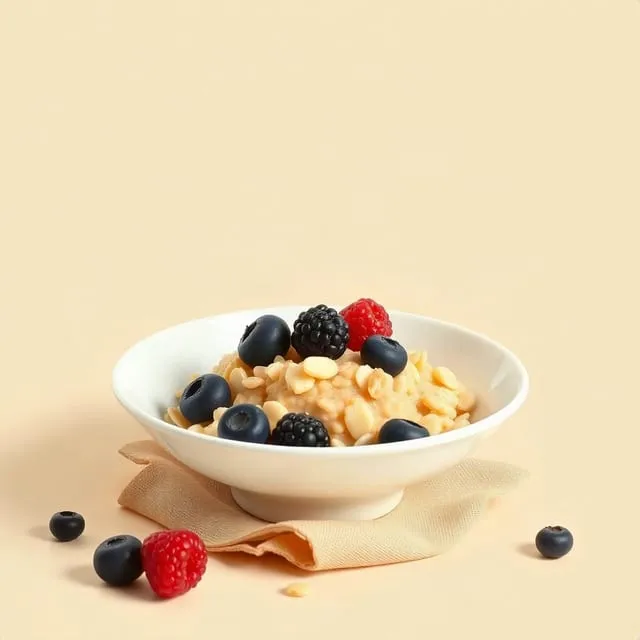
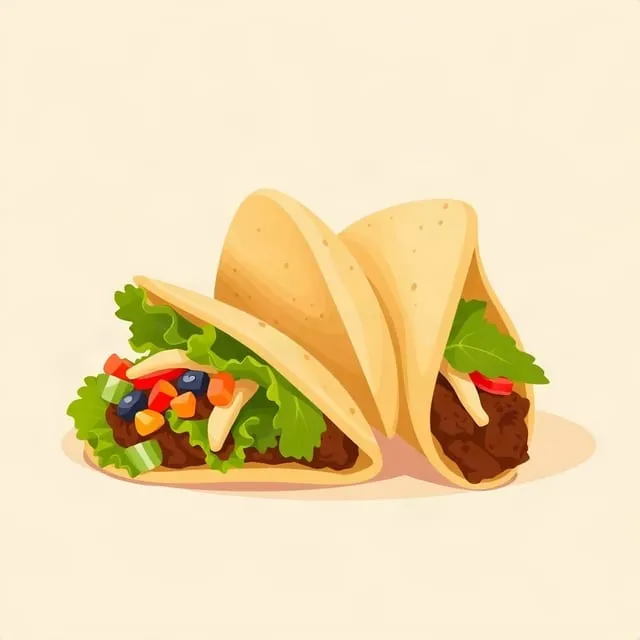
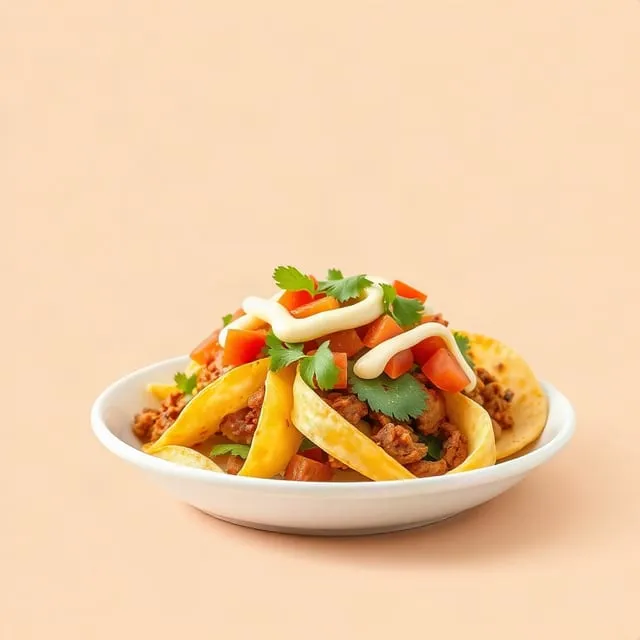
Type a dish and a picture appears a moment later, so the week reads at a glance. Rather use your own? Pick a photo from your library, or show the dish with no picture at all.

  • Pictures appear on their own, no photo shoot needed.
  • Swap in your own photo any time.
  • The name always shows, picture or not.

Recipes when you want them

A dish can be just a name: plenty of family dinners never needed a recipe. When one does, write it up once. It opens from the plan, scales to the servings you need, cooks step by step, and sends its ingredients to the shopping list.

  • A dish doesn’t need a recipe to be planned.
  • Cook step by step, with timers.
  • Ingredients go to the shopping list, merged with what’s there.

Ask it to plan the week

Ask for next week’s dinners, and the assistant plans them from the dishes you make most. Snap the school lunch menu, and it plans the lunches. Every plan waits for your OK, and it works from Claude and ChatGPT too.

  • “Plan next week’s dinners from our usual.”
  • Snap a lunch menu, get the lunches planned.
  • “Move taco night to Friday.”
  • Put a recipe’s ingredients on the list.
Meet the assistant

Made for real weeks

The small things that keep the plan going.

Questions about meal planning

Do I need recipes to plan meals?

No. A dish can be just a name, like “tacos” or “dinner at Grandma’s”. Add a recipe whenever you want one.

Can I plan just dinners?

Yes. Hide the slots you don’t use and bring them back any time; meals planned in a hidden slot are kept.

Where do the pictures come from?

Famlet draws a picture for each dish from its name. You can use your own photo instead, or show no picture.

Does it suggest meals?

As you type, it suggests your family’s own dishes, most-made first. Ask the assistant and it plans a whole week from them.

Can it plan from the school lunch menu?

Yes. Snap the menu in the assistant’s chat, and it plans the lunches for you to check.

Can the ingredients go on the shopping list?

Yes, for any dish with a recipe. They join what’s already on the list, and each item says which meal it’s for.

Plan your first week

Start with tonight’s dinner. The rest of the week takes a few minutes.

Start free

Choose which cookies famlet.co may use on this device. Privacy policy