

Famlet home

Every device you own.One family AI hub.

Famlet is your own app and the family’s control center on your phone, the family wall on a tablet, the calendar on the TV, and the whole app on any computer. Change something on one, and the others show it in seconds.

Start freeSee how it fits together

Available on iOS, iPadOS, Android & Web

Download on the App StoreDownload on the App StoreGet it on Google Play

Your phone: your own app and the family’s control center

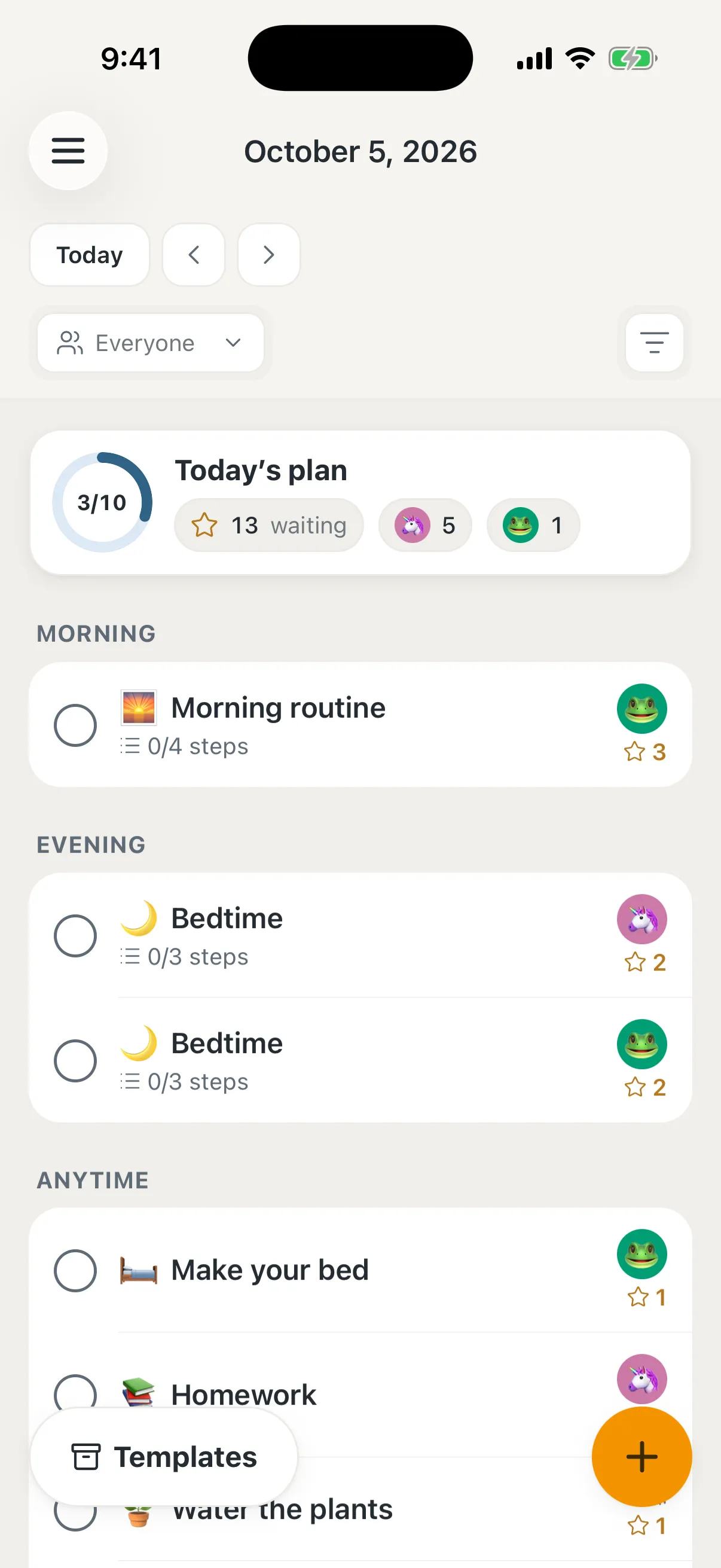
On your phone, Famlet is yours: your tasks, your private lists, reminders that reach you and an assistant whose chats only you can see. The whole family’s day is one tap away, ready to change from wherever you are.

  • Your own tasks, lists and reminders.
  • A personal assistant, private to you.
  • The whole family’s day, a tap away.

See the personal app

Your tablet: the family wall

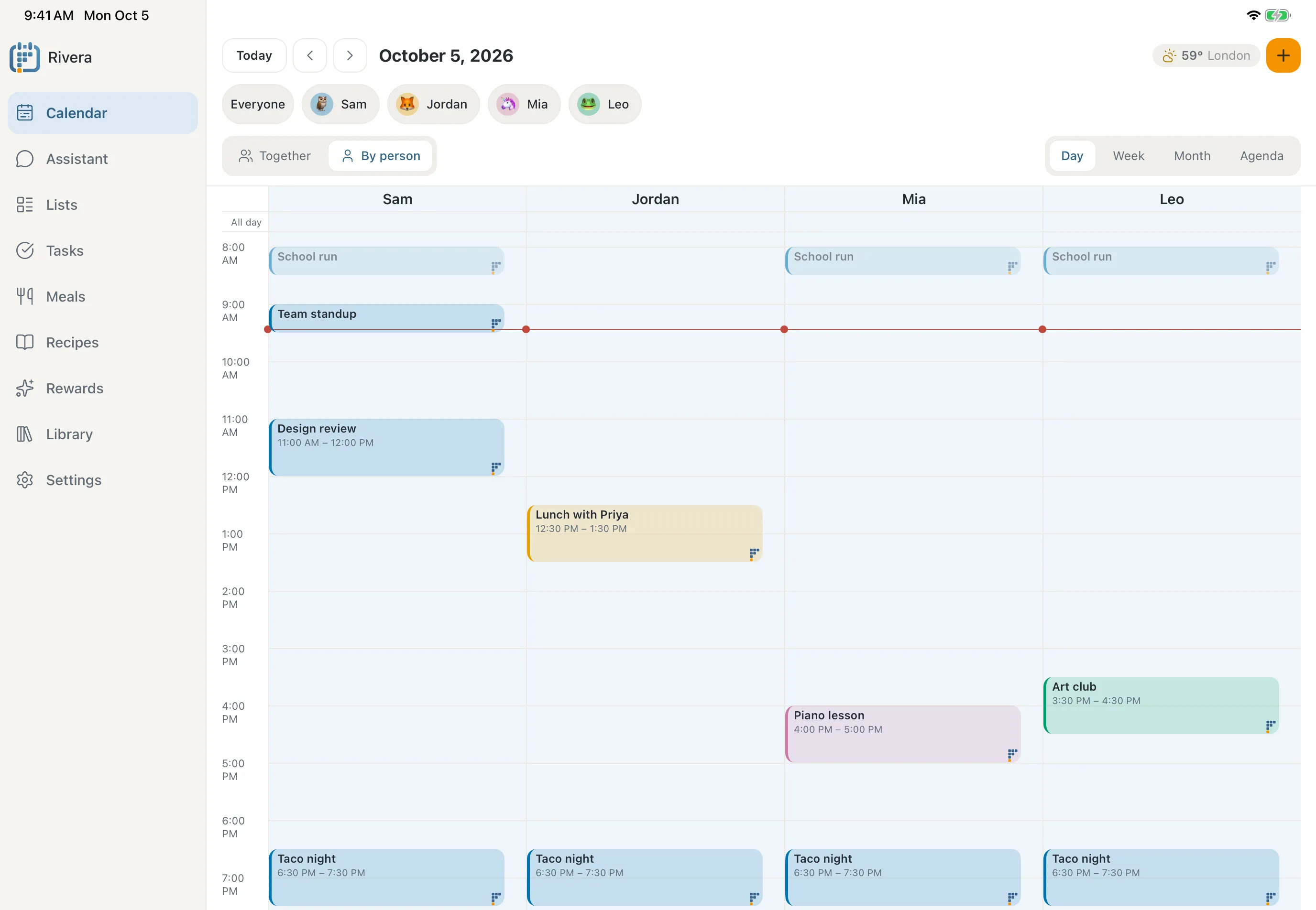
Install Famlet on a tablet, sign in, and it becomes the family’s wall: everyone’s day side by side, a big clock, the weather and what’s next. Turn on Display mode and a PIN keeps it on Home, while everyone can still tick things off.

  • No pairing: install the app and sign in.
  • Everyone’s day side by side, with a big clock.
  • Display mode keeps it on Home with a PIN.
See the calendar

Your TV: pair it with a code

Open display.famlet.co in your TV’s web browser and it shows a code. Type the code into the Famlet app on your phone, give the screen a name, and the family’s calendar is on the TV.

  • Works in the TV’s own browser.
  • Paired with a code in under a minute.
  • Each screen gets its own limited access.

Your computer: the whole app

On a laptop or desktop, the web app does everything the phone app does, with room to plan the whole week. There’s nothing to install: open app.famlet.co and sign in.

  • Any modern browser, nothing to install.
  • Everything the phone app does.
  • Room to plan the whole week.

Change it anywhere, it changes everywhere

Move swimming on your phone, tick a chore on the wall, add milk from the laptop: every other screen shows it a moment later, with no refresh button and nothing to sync by hand.

  • Changes reach every screen in seconds.
  • No refreshing, no syncing by hand.

Your calendar outlives the hardware

Your family’s calendar, lists and photos live in your account, not on the screen. When a tablet gets old, pair the new one and unpair the old one in a minute, and you can export all of it at any time.

  • Your family’s things live in your account, not the screen.
  • Pair a new screen and retire the old one in a minute.
  • Export everything, any time.

Wi-Fi drops. The wall stays.

If the network goes, a paired screen keeps showing the last day it saw and says since when it’s been offline. It catches up by itself when the Wi-Fi is back. On phones and tablets, the calendar opens offline too.

  • Keeps showing the last day it saw.
  • Says honestly since when it’s offline.
  • Catches up by itself when the Wi-Fi is back.

Your assistant, wherever you ask

The assistant isn’t tied to one screen. Ask it in the Famlet app on any device, or connect it to the AI apps you already use. Forward an email to your family’s Famlet address, and it reaches the assistant too.

  • Claude
  • ChatGPT
  • Muse
  • AlexaComing soon
  • Any app that supports MCP

riveras@inbox.famlet.co

  • In the Famlet app on every device.
  • In Claude, ChatGPT and Muse.
  • Through your family’s email address.

The small things that make it feel at home

On every device, it looks and works the way that device should.

Questions about devices

Which devices does Famlet work on?

iPhone, iPad and Android phones and tablets with the Famlet app, any computer’s web browser, and any TV or screen with a web browser as a wall.

Is there an app for iPhone and Android?

Yes. Get Famlet on the App Store or Google Play, or use the full app on the web.

How do I put Famlet on the wall?

On a tablet, install the app and sign in, and turn on Display mode if you want it locked. On a TV or any other screen, open display.famlet.co in its browser and type the code it shows into the Famlet app.

What is Display mode?

It locks a tablet to Home with a PIN. Everyone can still tick off tasks and list items, while editing and the rest of the app wait for the PIN.

Can I use Famlet just for myself?

Yes. Your tasks, private lists and chats with the assistant are yours, and the family’s side is there when you need it.

What happens when the Wi-Fi drops?

A paired screen keeps showing the last day it saw and says since when it’s been offline. On phones and tablets, the calendar opens offline too.

Do I need to buy a screen?

No. Use the phones, tablets, computers and TVs you already have. An older tablet from a drawer works well.

Start on the device in your hand

Add the tablet, the TV and the laptop whenever you’re ready.

Start free

Choose which cookies famlet.co may use on this device. Privacy policy